.png?width=180&height=23&name=Mapcreator%20logo%20(1).png)
In this article, we will look at how data binding allows you to automatically pass values from your file into the Mapcreator interface.
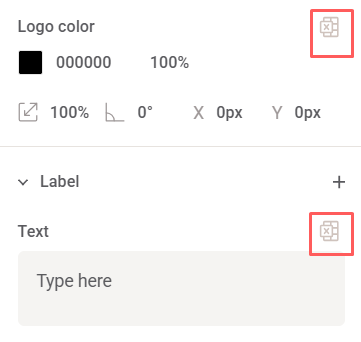
When working with icons, you may notice a table icon next to some fields. This icon marks fields that can be automatically filled when you import a compatible file (KML, GPX, GeoJSON, XLSX, CSV). These are text fields, color codes, and the selected icon.
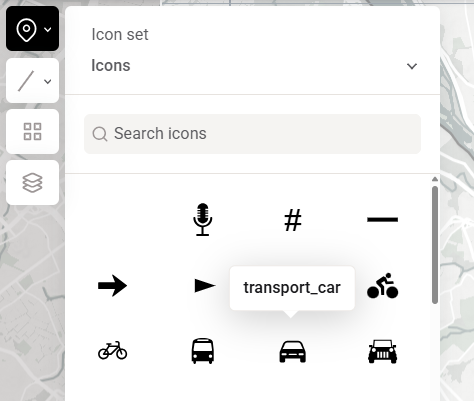
To bind an icon, add its name to the spreadsheet column. Hover over it in the tool to find its name.
In the example below, we import a spreadsheet with the average annual temperature for several European capitals. The spreadsheet contains three types of data: location columns to place the icons correctly; a column with temperature values; and columns with color codes for the icon and text.
To use a value from the spreadsheet, you should click the table icon and select the desired column. Alternatively, you can type the column name after the $ sign.
Please note that for text fields, you can specify multiple columns and combine them with regular text. For example, in the video, two columns, $Capital and $Country, are used and separated by a regular comma typed manually.
Click here to download this spreadsheet to try it out for yourself!
Want to learn more? Watch the step-by-step tutorial below for an even more in depth guide on data binding from a spreadsheet.
This is not the only article about spreadsheets:
The basic principles of the spreadsheet import are covered in this article.
To learn how spreadsheets can optimize your work on the interactive maps, see this article.